
.jpg?width=900&name=case%20study%20feature%20(79).jpg)
You can build a Power App directly on your Dynamics 365 data because Dynamics 365 Sales, Customer Service and Customer Insights all store their data in Microsoft Dataverse, the same data platform Power Apps uses. There is no integration to build. You add Dataverse as a data source, pick the Dynamics tables you need, such as Accounts or Contacts, and then read and write records with Power Fx or with Power Automate flows.
This article was written by one of our Dynamics 365 consultants for people implementing Dynamics 365, so it assumes some familiarity with the platform.
How do Dynamics 365 and Power Apps share the same data?
Dynamics 365 customer engagement apps such as Sales and Customer Service are model-driven apps running on Dataverse, so a custom Power App can work against exactly the same Account, Contact, Case or Opportunity records your users see in Dynamics, with the same Dataverse security roles applied.
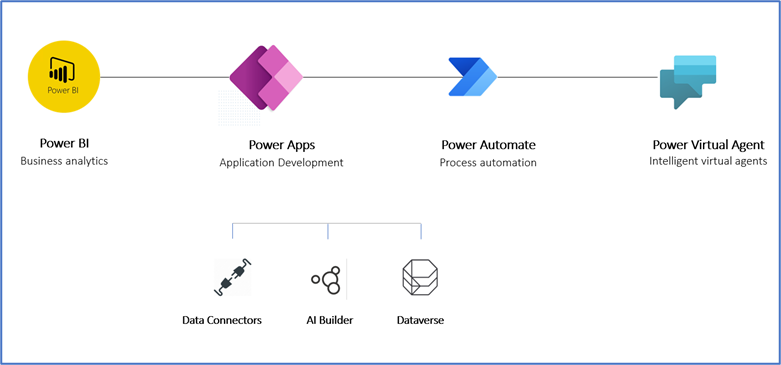
Dataverse is part of the wider Power Platform, alongside Power Apps, Power Automate, Power BI and Copilot Studio (which replaced Power Virtual Agents for building chat agents).
Should you build a canvas app or a model-driven app?
There are two main types of app to choose from:
- Model-driven apps are built from your Dataverse data model, using forms, views, charts and dashboards. They can only be built on Dataverse, and they are the right choice when you want something that looks and behaves like Dynamics 365.
- Canvas apps give you full control over the layout and can connect to Dataverse plus hundreds of other data sources. They suit task-focused apps, mobile apps for field staff, or anything that combines Dynamics data with data held elsewhere, such as SharePoint or SQL Server.
You can also combine the two by adding a canvas-based custom page into a model-driven app, which is the supported way to bring a canvas experience inside Dynamics 365.
What do you need before you connect a Power App to Dynamics 365?
- The right environment. Build the app in the same Power Platform environment as your Dynamics 365 apps, so it can see the Dynamics tables.
- The right connector. Use the Microsoft Dataverse connector. The older Dynamics 365 connector is deprecated, and Microsoft provides guidance for converting canvas apps that still use it.
- Maker permissions. To build a canvas app on Dataverse you need the Environment Maker security role, either directly or through a Dataverse team.
- Licences for the people using it. Dataverse is a premium capability, so every user who runs the app needs a premium entitlement. Qualifying Dynamics 365 licences include Power Apps rights for extending the licensed Dynamics 365 app, but those rights apply in the context of that app, and some Dynamics licences only allow premium canvas apps when they are embedded in a model-driven app as a custom page. Check your licences before you build.
How do you create, read, update and delete Dynamics 365 records in a canvas app?
Once Dataverse is added as a data source, each Dynamics table behaves like a table in your app and you work with it using Power Fx formulas. Using the Accounts table as an example:
- Read. Set a gallery's Items property to the table, or narrow it down with
Filter,SearchorLookUp, for exampleLookUp(Accounts, 'Account Name' = "Contoso")to return a single record. - Create. Use an Edit form, or use
Patch(Accounts, Defaults(Accounts), { 'Account Name': "Contoso" }), whereDefaultsprovides a new record with the table's default values. - Update. Use
Patchwith an existing record and only the columns you want to change. Choice and lookup columns take a specific shape, so a lookup such as Primary Contact is set by passing in the related Contact record. - Delete. Use
Removefor a specific record orRemoveIffor every record matching a condition.
Wrap writes in IfError so users see a sensible message if a save fails, and watch for delegation warnings when you filter large Dynamics tables, because a non-delegable query only works on the first batch of records rather than the whole table.
When should you use Power Automate and the Dataverse connector instead?
If the work needs to happen in the background, such as sending a notification when a case is updated or writing records to another system, a cloud flow is usually a better fit than putting the logic in the app. The Microsoft Dataverse connector in Power Automate provides these triggers:
- When a row is added, modified or deleted
- When a row is selected
- When an action is performed
It also provides actions to add a new row, list rows, get a row by ID, update a row, delete a row, search rows with relevance search, relate and unrelate rows, perform bound and unbound actions, run a changeset request, and upload or download a file or image. List rows lets you choose columns, filter and sort rows and set a row count, while Get a row by ID, Update a row and Delete a row all use the row ID as the key.
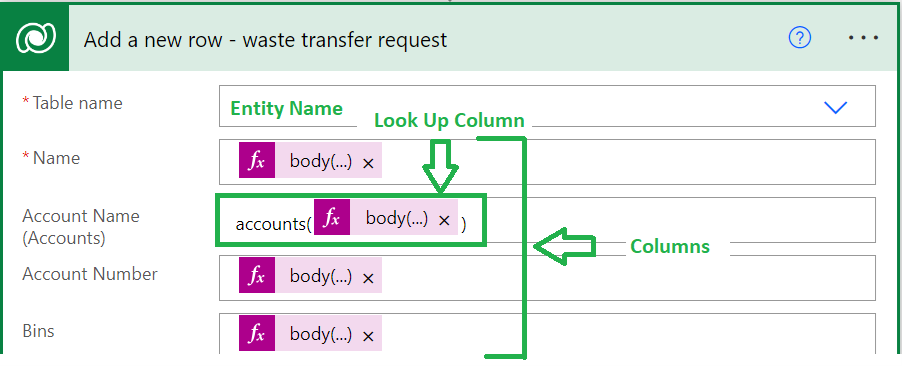
Use filter columns on the "added, modified or deleted" trigger so the flow only runs when the columns you care about change, otherwise every edit to the row will start a run.
Can Copilot build the app for you?
It can give you a good head start. Copilot in Power Apps lets you describe what you want to track in plain language and generates Dataverse tables and a canvas app from that description. Plans in Power Apps goes further: you describe a business process, optionally with screenshots or process diagrams, and it proposes a full solution that can include Dataverse tables, canvas and model-driven apps, Power Pages sites, Power Automate flows and Copilot Studio agents. Both need an environment with a Dataverse database, and availability depends on your region. On a Dynamics project, check what it produces against your existing data model so you use the standard Dynamics tables rather than duplicates.
If you are newer to Power Apps, our step-by-step guide to building a Power App covers planning, testing and launch, and we also offer Dynamics 365 support if you need help with the platform underneath.
Frequently asked questions
Do users need a premium licence to use a Power App built on Dynamics 365 data?
Yes, in most cases. Apps that use Dataverse are premium, so each user needs a premium entitlement such as a Power Apps licence. Qualifying Dynamics 365 licences include Power Apps rights, but only in the context of the licensed Dynamics 365 app, so check your licences against Microsoft's licensing guide.
Which connector should a canvas app use to reach Dynamics 365 data?
Use the Microsoft Dataverse connector for Dynamics 365 Sales, Customer Service, Field Service and the other customer engagement apps. The older Dynamics 365 connector is deprecated. For Business Central or finance and operations apps, Microsoft points you to their own dedicated connectors.
Is a canvas app or a model-driven app better for Dynamics 365 users?
A model-driven app suits users who live in Dynamics and want a familiar, form-based experience on a subset of tables. A canvas app suits mobile or task-focused scenarios, or apps that need data from outside Dataverse. You can embed a canvas custom page inside a model-driven app to get some of both.
Need help building on your Dynamics 365 data?
We build canvas and model-driven apps on Dataverse and Dynamics 365, from small task apps to line-of-business systems. Have a look at our Power Apps services or get in touch to talk through what you need.

/SharePoint%20Migration/Half-Screen-Image-Size-%20people%20writing%20on%20glass.png?width=800&name=Half-Screen-Image-Size-%20people%20writing%20on%20glass.png)
/Individuals%20working%20off%20different%20devices%20at%20a%20desk..png?width=800&name=Individuals%20working%20off%20different%20devices%20at%20a%20desk..png)